

Most people open a new app, poke at three buttons, get distracted, and never come back. That is the default outcome for any app you download today. The first ten minutes decide whether you actually use the thing, or whether it joins the graveyard of installs you forgot about by next Tuesday.
This walkthrough takes you through those ten minutes deliberately. By the end, you will have set a reading goal, imported your first document, completed your first reading session, and generated your first AI flashcards. Nothing complicated. Nothing rushed. Just the path that gives the app the best chance of becoming part of how you read.
Open the app. Let’s go.
Minute 1 to 2: set your reading goal
The first screen asks what you want to use Accruva for. There are four options: ace your exams, stay ahead at work, read more books, or just explore the app. Pick the one that fits your situation.
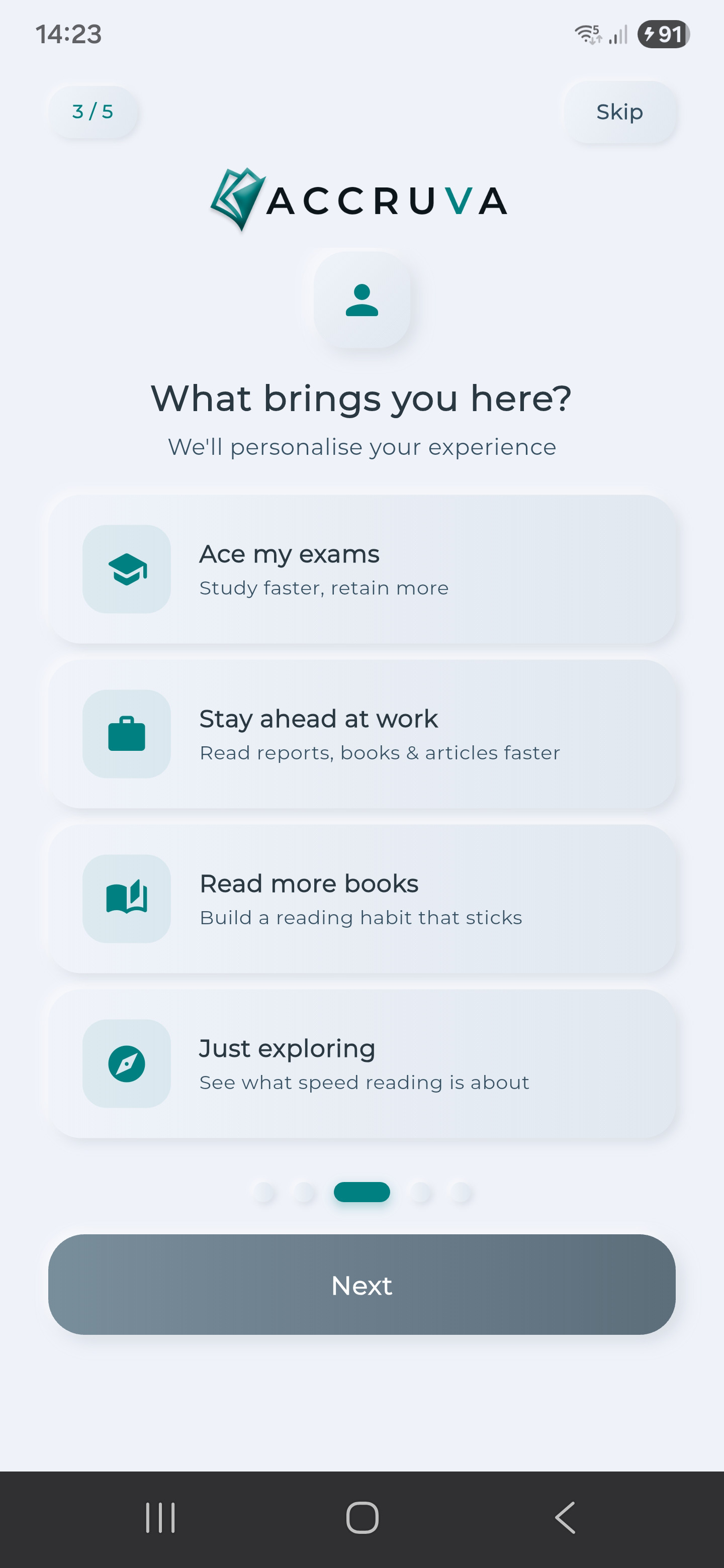
This choice does two things. It sets a baseline expectation for the app, and it tunes the recommendations you see later. If you pick “ace my exams,” the app will surface its study tools earlier in the navigation. If you pick “read more books,” the habit-building features come forward.
You can change this later in Settings. So if you are not sure, pick the closest match and move on. The next screen is where the work starts.

Minute 2 to 4: add your first document
The app does not work without something to read. The Library starts empty. You need to add a document before any of the reading modes will do anything useful.
Three import options sit at the bottom of the Library screen: Import a file, scan with the camera, or Paste from clipboard. Pick whichever fits what you have to hand right now.
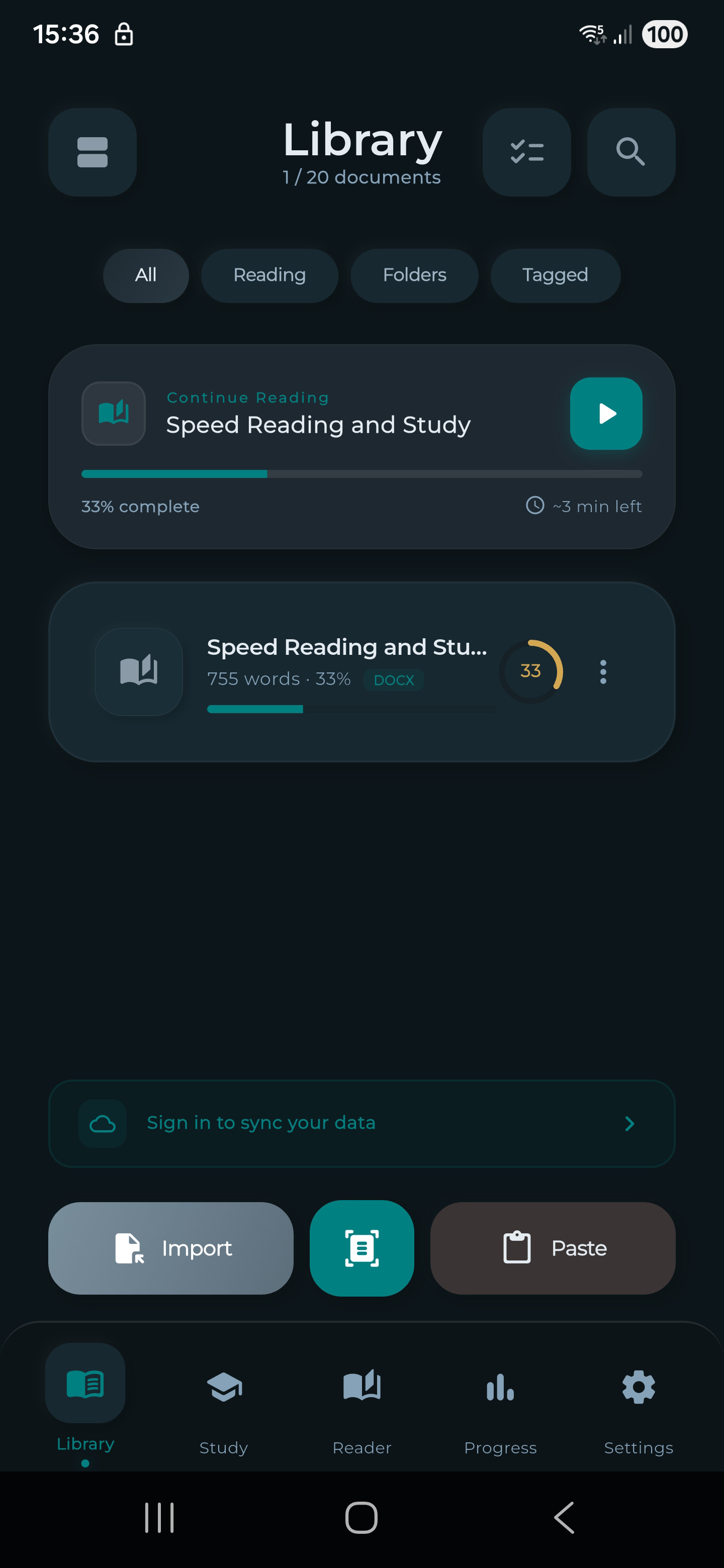
For your first document, Paste is fastest. Copy any article from your browser, switch back to Accruva, tap Paste, give the document a name, and tap save. The whole flow takes about 15 seconds.
If you want to use a PDF or DOCX file from your phone storage, tap Import. The supported formats are PDF, EPUB, DOCX, MD, HTML, HTM, ODT, and TXT. The free tier limits you to one import per day and 20 documents in your library at any time. That is enough for testing the app properly.
Camera scan is useful for paper books and printed material. The OCR runs entirely on your phone using Google ML Kit. No data leaves your device.
Minute 4 to 5: pick your reading mode
Tap your newly imported document. The reader opens with five mode icons across the top of the screen: Focus, Teleprompter, Chunking, Bold Flow, and Scroll. All five are free on every tier. None are locked behind a subscription.
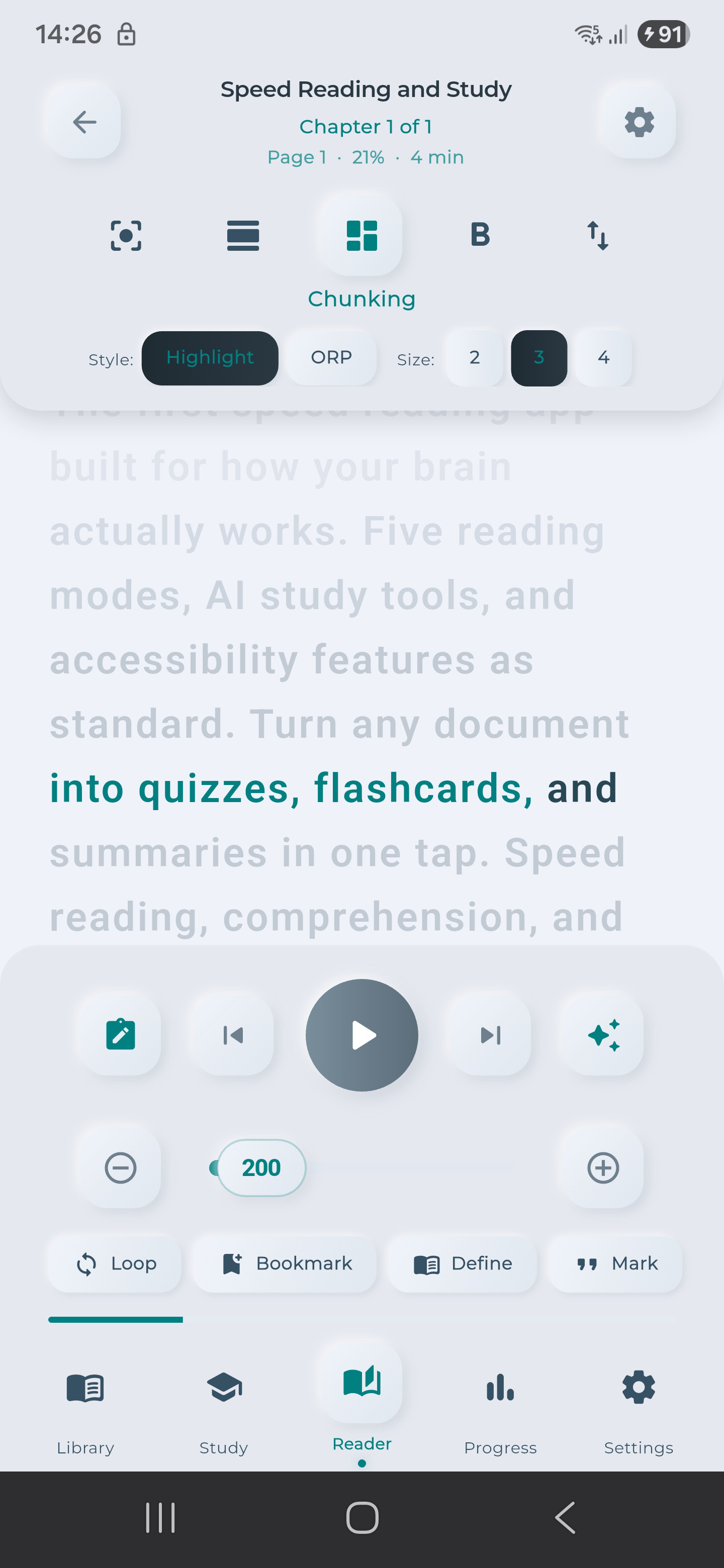
For your first session, tap Focus. Focus mode flashes one word at a time at a set speed. It is the simplest mode to grasp in 10 minutes, and it produces the clearest sense of what speed reading actually feels like.
Set the WPM slider at the bottom to 250. That is roughly the average reading speed for adults. Starting at average gives you a baseline to push from. Going too fast on your first session breaks comprehension and discourages you from coming back. Pick 250, tap the play button, and read.
Minute 5 to 8: your first reading session
The first 30 seconds will feel uncomfortable. That is normal. Your eyes are used to scanning a page, and Focus mode keeps your eyes still while words flash in front of you. Trust the process for the full session, even if it feels too fast.

If you need to slow down, tap the screen once to pause. The pause overlay shows your current speed and lets you adjust before resuming. There is no pressure. The app is not racing you.
If 250 WPM feels too fast after a paragraph, drop to 200 and continue. If it feels comfortable after a few paragraphs, try 300. The point of the first session is to find your honest current pace, not to impress yourself.
When you finish the document, the completion screen shows three things: your average WPM, your total reading time, and a small option to generate flashcards from what you just read. We are about to use that option.

Minute 8 to 9: generate your first AI flashcards
Reading is only half the work. Without retrieval practice, most of what you read evaporates within 24 hours (Brown, Roediger & McDaniel, 2014). Spaced repetition flashcards are the most evidence-backed method for keeping information accessible long-term.
From the completion screen, tap the AI tools menu and pick Generate Flashcards. The AI reads through the document and produces a small set of front-back card pairs covering the key concepts. The whole process takes about 15 seconds.
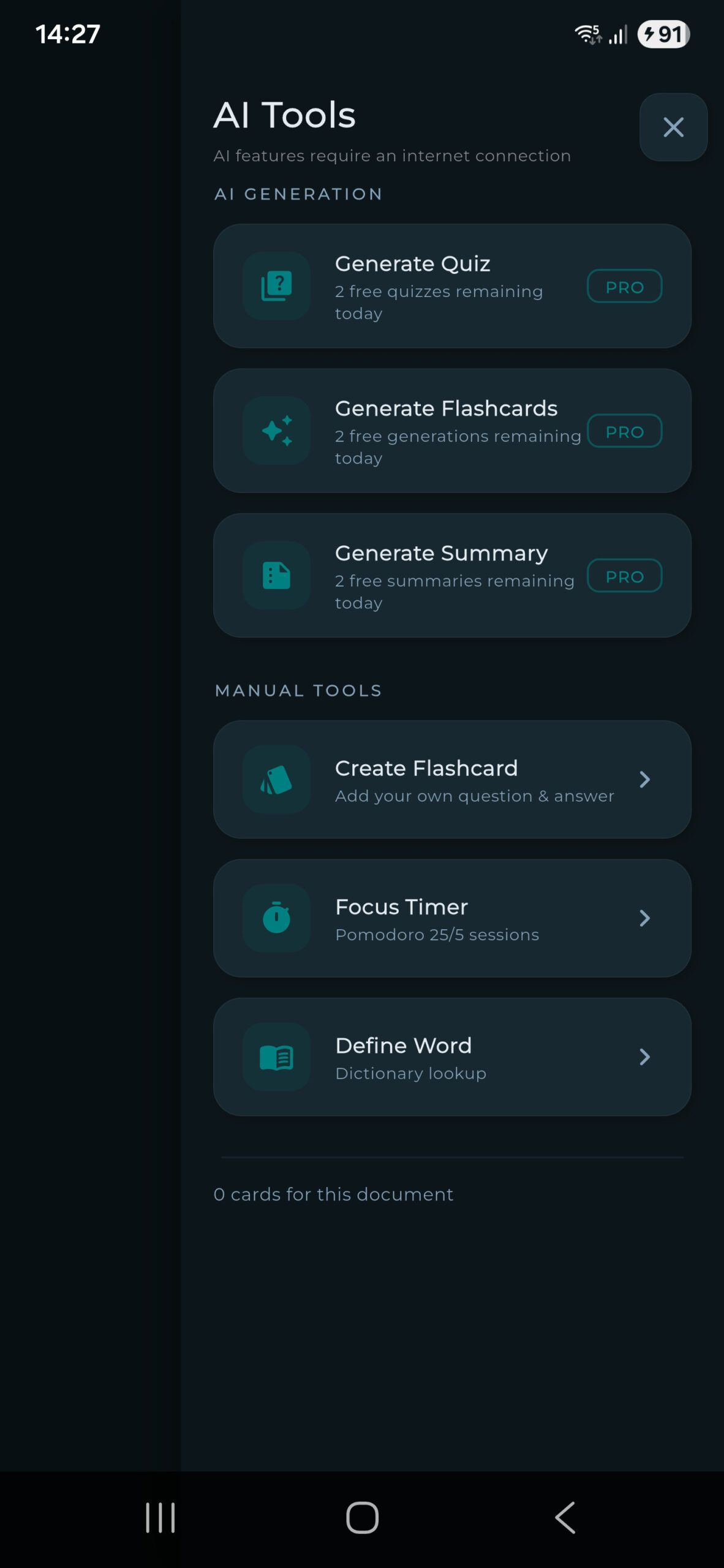
Free tier limits matter here. You get 15 AI calls per day total, shared across quiz, flashcards, and summary tools. Watching a rewarded video gives you up to three additional calls per feature per day. Pro tier raises the cap to 150 daily calls.
Once your flashcards are generated, they automatically schedule into the SM-2 spaced repetition system, the same algorithm Anki uses. You will not see the flashcards again immediately. They will appear in your daily review queue at the right interval to maximise retention.
Minute 9 to 10: set your daily goal
The last minute is for habit-building. Open the progress tab from the bottom navigation. The default daily goal is 10 minutes of reading. Keep it. Do not change it to 30 minutes because you feel motivated right now.
Ten minutes a day is the goal that survives a bad week. Thirty minutes a day is the goal that gets abandoned by Wednesday. The streak system rewards consistency, not heroics. Two missed days break a streak. Free users get two streak freezes per week from rewarded videos. Pro users get two freezes plus automatic weekend protection.
Set a notification for the time of day you are most likely to read. Morning commute, lunch break, before bed. The app does not care which. Pick the one you will actually honour.

What to do from minute 11 onwards
The first ten minutes are setup. The next few weeks are where the actual benefit shows up. Three things matter from here.
First, hit your daily goal. Ten minutes, every day. The reading speed gains compound across weeks, not within a single session. If you read 10 minutes daily for 30 days, your WPM will improve measurably. If you read 60 minutes once and never come back, nothing changes.
Second, try a different reading mode every few sessions. Focus is the easiest to grasp, but Chunking and Bold Flow tend to produce better long-term comprehension for most readers. Test each mode on at least three documents before deciding which works best for your brain. There is real science behind why these techniques work, and the right mode for you depends on the material you are reading and how your attention works.
Third, take the reading speed test at the end of week one and again at the end of week four. Compare your scores. The number itself is less important than the trend. If the trend is up, the practice is working. If it is flat, change the mode you are using.
Not downloaded Accruva yet?
Everything in this walkthrough is available on the free tier. No trial that quietly charges you. No accessibility features locked behind Pro.
Get Accruva freeFrequently asked questions
Do I need to create an account before I can use Accruva?
What is the difference between the free tier and Pro?
Why does my first reading session feel uncomfortable?
What WPM should I start at as a beginner?
Do AI flashcards actually help retention, or are they a gimmick?
Can I use Accruva for studying with ADHD?
How long until I see real reading speed improvement?
What happens to my data if I cancel a Pro subscription?
The first ten minutes are done. The next ten thousand are up to you.
Ross Proudfoot, founder of Accruva
Run this walkthrough yourself
Accruva is free on every tier. Five reading modes, AI flashcards, spaced repetition, full accessibility settings. No card required.